Introduction
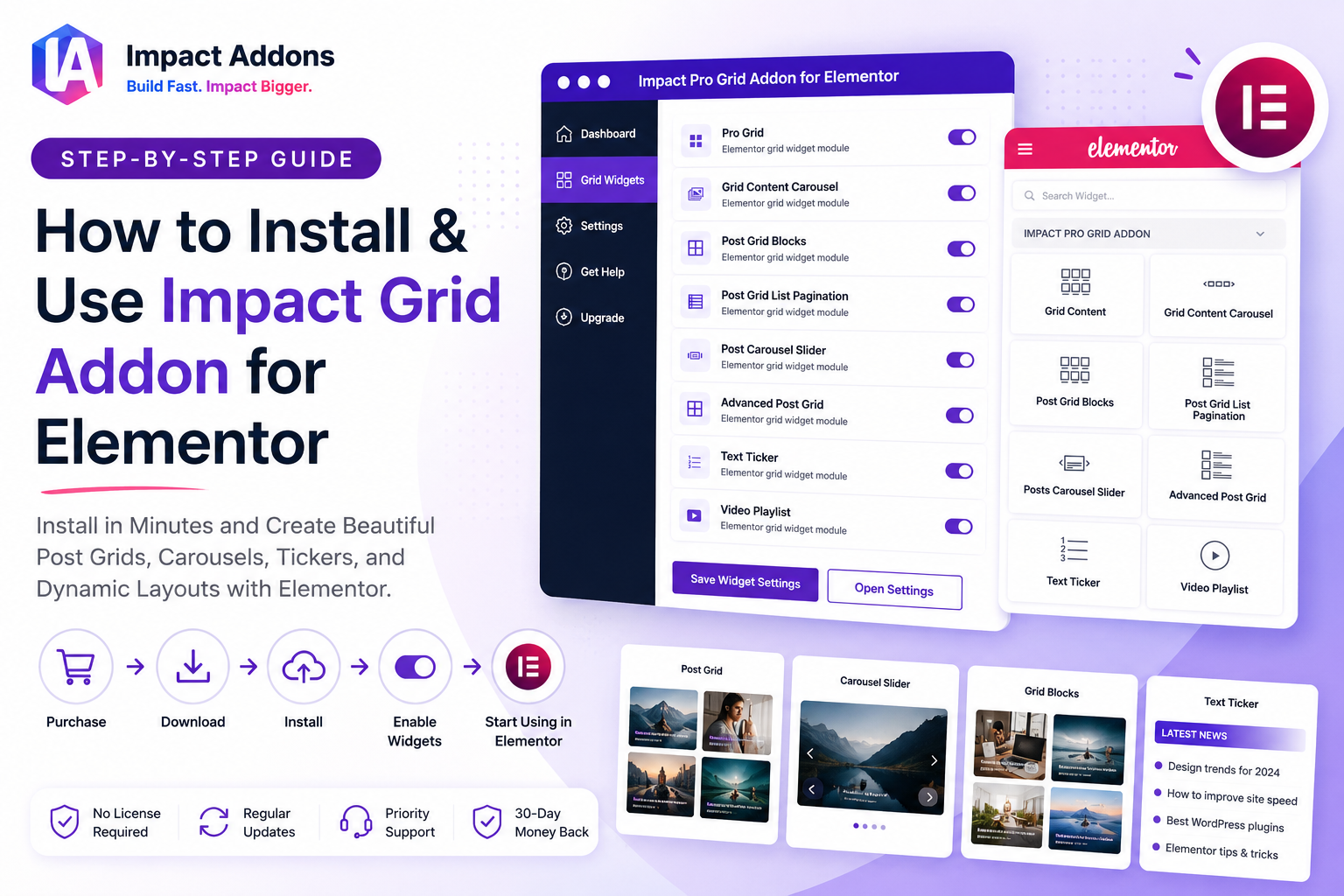
Impact Grid Addon for Elementor helps you build beautiful, dynamic grid layouts for WordPress and WooCommerce websites without writing code. With advanced grid widgets such as Post Grid, Content Carousel, Video Playlist, Text Ticker, and Post Carousel Slider, you can easily create engaging layouts that improve your website’s appearance and user experience.
Impact Grid Addon for Elementor is designed for users who want to create professional post grids, content carousels, and dynamic layouts without writing code.
This guide walks you through the complete installation process, from purchasing the plugin to enabling grid widgets and using them inside Elementor.
Estimated Setup Time: 5–10 Minutes
Step 1 – Choose the Right Plan
Before purchasing, decide whether Impact Grid Addon for Elementor as an individual plugin or the complete Elementor Bundle best fits your website.
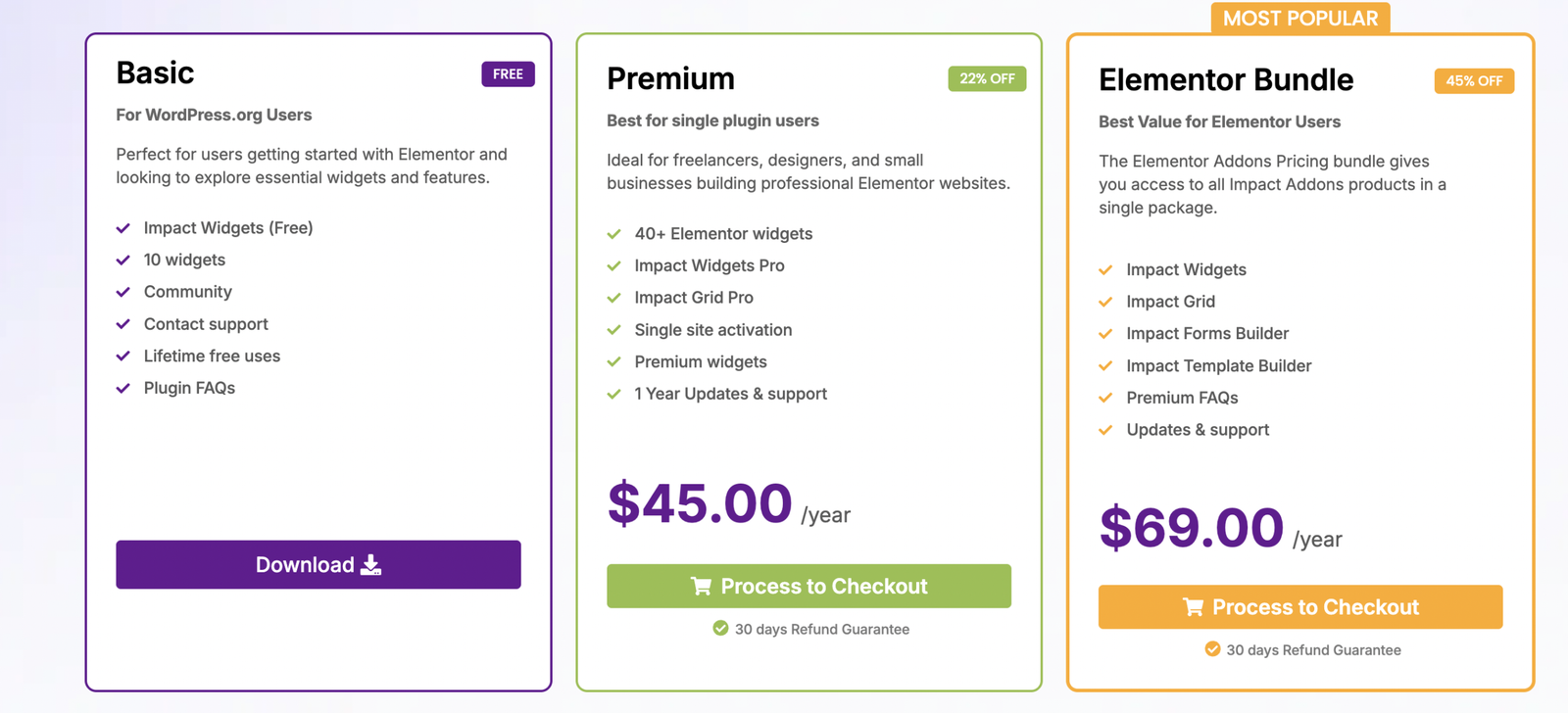
Before installing the plugin, you’ll need to purchase Impact Grid Addon for Elementor.
There are two purchase options depending on your requirements.
Individual Plugin
Purchase Impact Grid Addon if you only need advanced grid and post layout widgets.
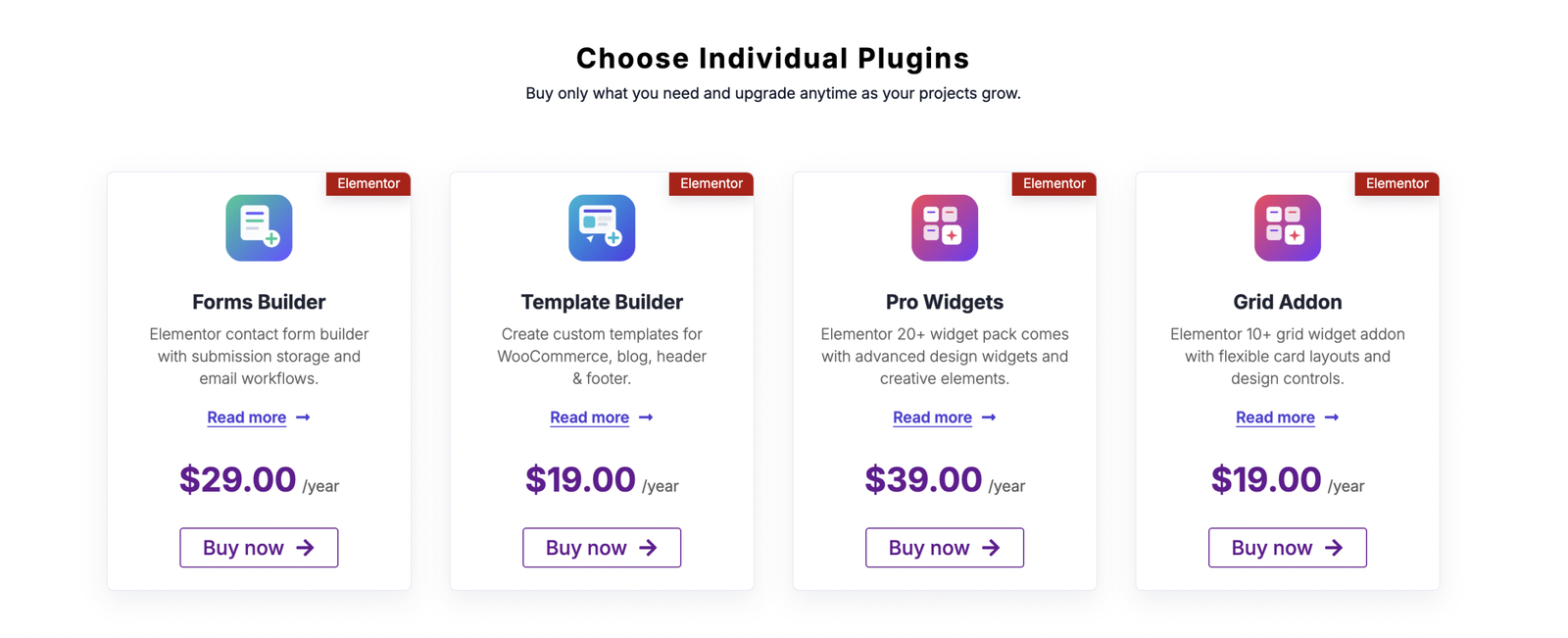
Your purchase includes:
- All Premium Grid Widgets
- One Year of Updates
- Priority Support
- 30-Day Money Back Guarantee
Elementor Bundle (Recommended)
For the best value, choose the Elementor Bundle.
The bundle includes:
- Impact Pro Widgets
- Impact Forms
- Impact Template Builder
- Impact Grid Addon
It’s the ideal solution if you’re building complete Elementor websites with advanced widgets, forms, templates, and grid layouts.
Helpful Links
Pricing
https://impactaddons.com/pricing/
Impact Grid Addon
https://impactaddons.com/impact-grid-addon-for-elementor/
Impact Pro Widgets
https://impactaddons.com/impact-widgets-for-elementor/
Impact Forms
https://impactaddons.com/impact-forms-for-elementor/
Impact Template Builder
https://impactaddons.com/impact-template-builder/
Step 2 – Purchase Impact Grid Addon
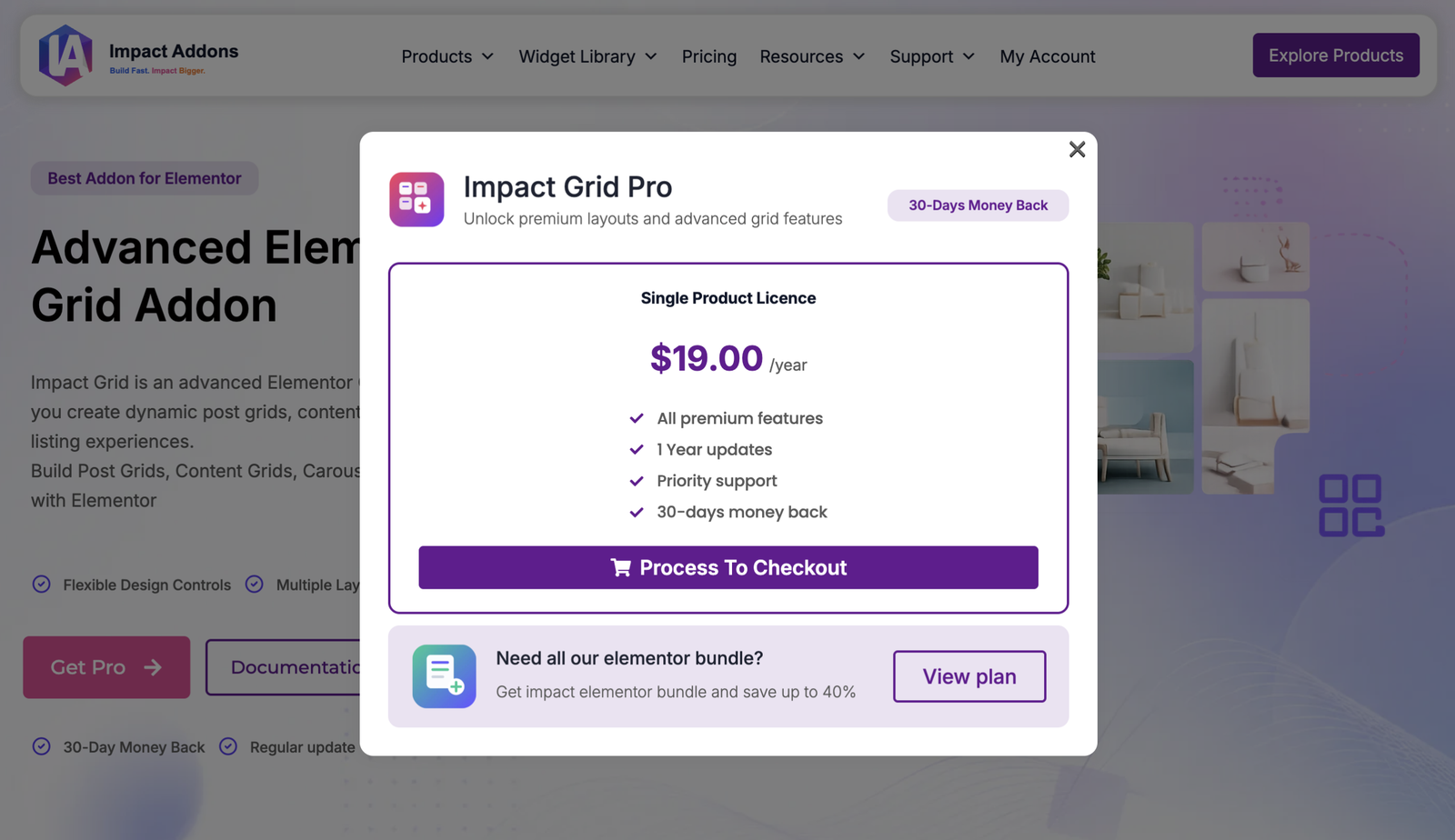
After selecting your preferred plan, click Get Pro or Buy Now.
Review your selected license, included premium features, yearly pricing, and support information before continuing.
If you decide later that you need additional Elementor plugins, you can upgrade to the Elementor Bundle directly from the purchase popup.
Click Process To Checkout to continue.
Step 3 – Complete Checkout
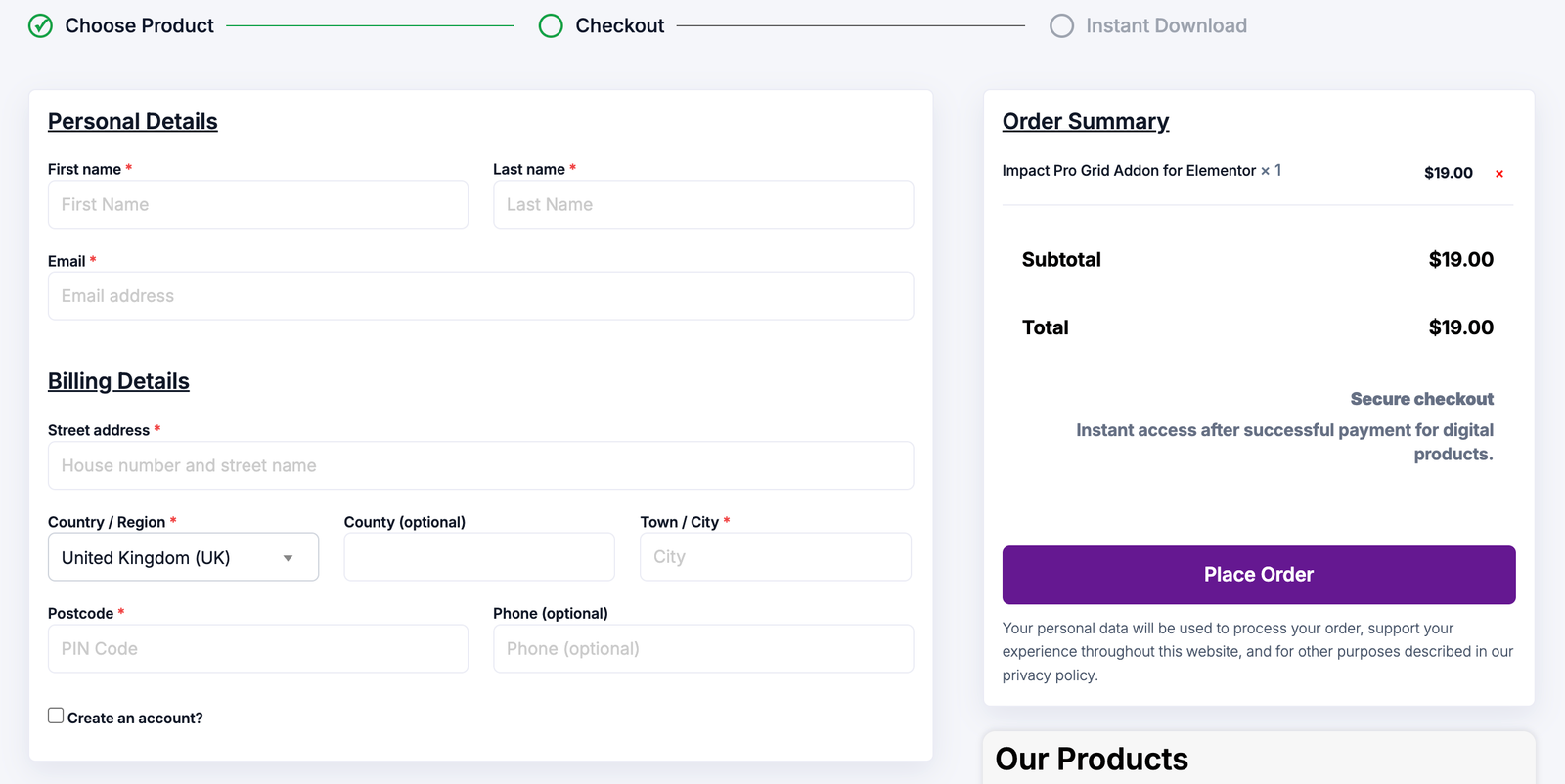
Enter your billing information to complete your purchase securely.
Fill in:
- First Name
- Last Name
- Email Address
- Billing Address
- Country
- City
- Postal Code
- Phone Number (Optional)
Review your order summary before clicking Place Order.
Once your payment is successful, you’ll receive instant access to download the plugin.
Step 4 – Download and Install Impact Grid Addon
After purchasing the plugin, you can download the latest version in two ways.
Download from My Account
Log into your Impact Addons account and open the Downloads section.
Download from Email
A purchase confirmation email is also sent to your registered email address with a direct download link.
Download the ZIP file and save it to your computer.
Next, log into your WordPress Dashboard and navigate to:
Plugins → Add New → Upload Plugin
Click Choose File, select the downloaded ZIP file, then click Install Now.
After installation completes, click Activate Plugin.
Good to Know: Impact Grid Addon does not require a license key. Simply install, activate, and start using the plugin.
Step 5 – Enable Grid Widgets
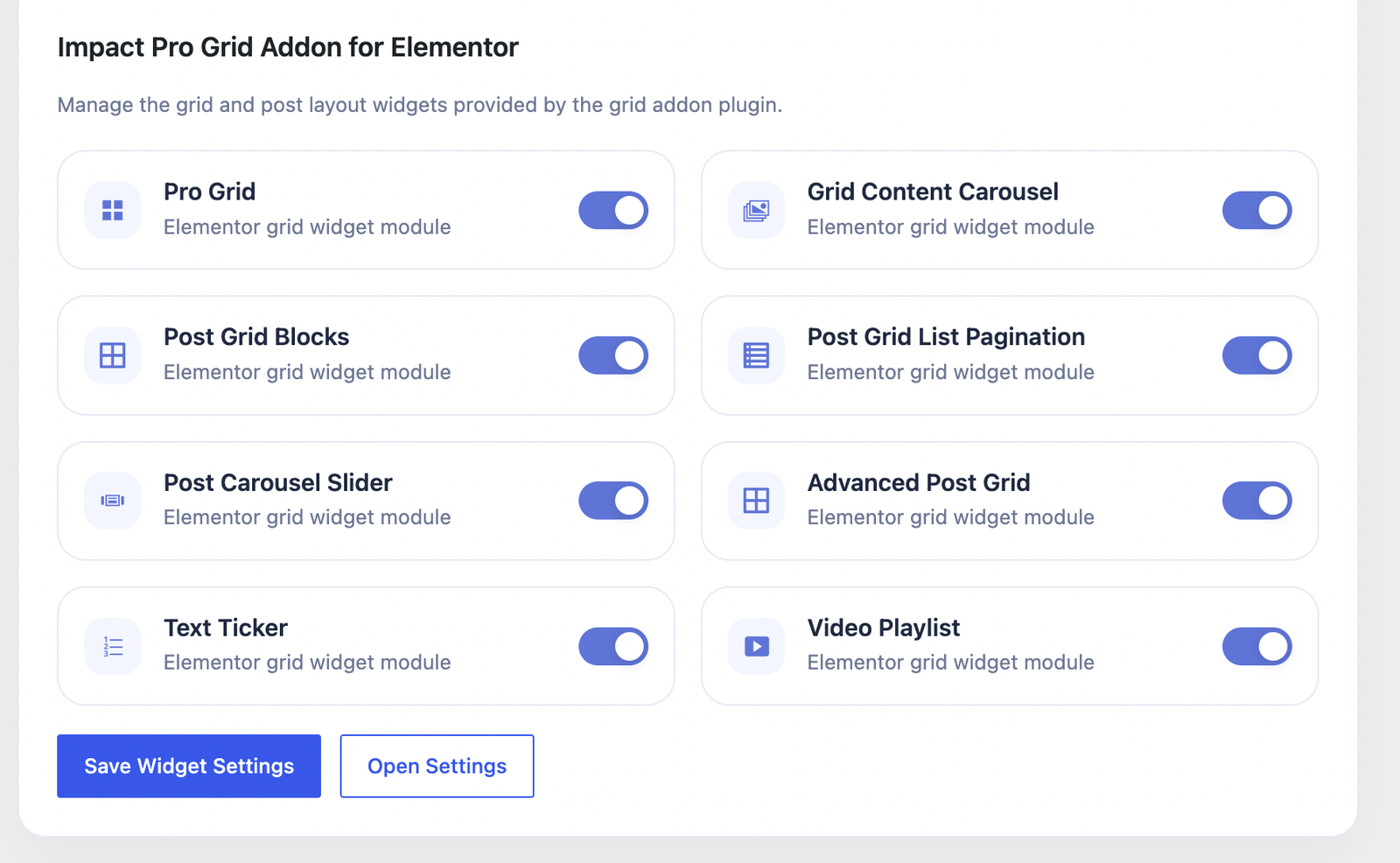
After activation, open the Impact Grid Addon Settings page.
Here you can enable or disable individual grid widgets depending on your project requirements.
Available widgets include:
- Pro Grid
- Grid Content Carousel
- Post Grid Blocks
- Post Grid List Pagination
- Post Carousel Slider
- Advanced Post Grid
- Text Ticker
- Video Playlist
Enable the widgets you want to use and click Save Widget Settings.
Disabling unused widgets helps keep your Elementor editor lightweight and improves website performance.
Step 6 – Start Using Grid Widgets in Elementor
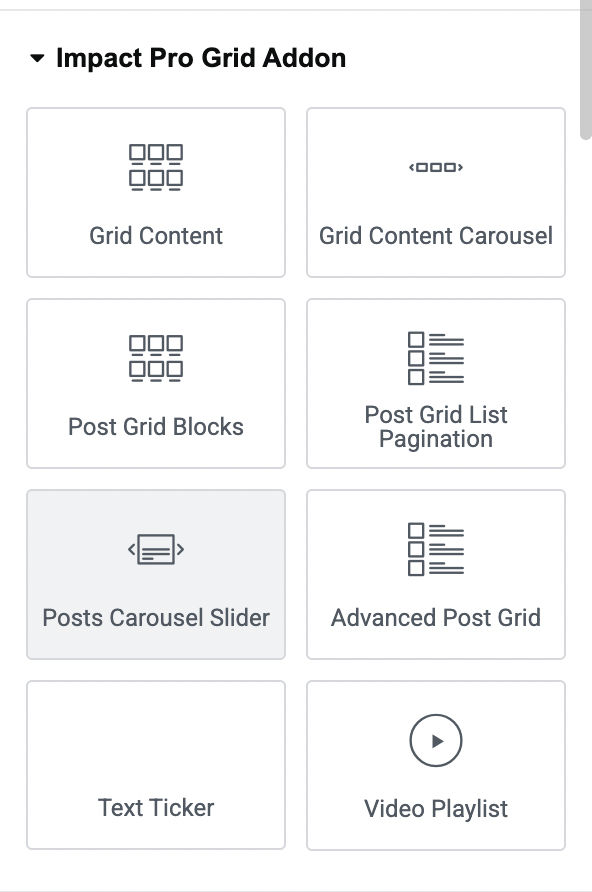
Open any page using Elementor.
Search for Impact Pro Grid Addon in the Elementor widget panel.
You’ll find all available grid widgets ready to use.
Pro Grid
Create fully customizable post and content grids with flexible layouts.
Grid Content Carousel
Display posts, pages, or custom content inside responsive carousels.
Post Grid Blocks
Design magazine-style blog layouts with multiple post blocks.
Post Grid List Pagination
Display posts in a clean list layout with built-in pagination.
Post Carousel Slider
Show posts inside a responsive carousel slider.
Advanced Post Grid
Build advanced dynamic post grids with flexible styling controls.
Text Ticker
Create scrolling news tickers or announcement bars.
Video Playlist
Display multiple videos inside a professional playlist layout.
Simply drag any widget onto your Elementor page and customize it using the built-in controls.
What’s Next?
Congratulations! You’ve successfully installed Impact Grid Addon for Elementor.
Continue with our detailed widget tutorials to learn how each grid widget works and how to create professional layouts for blogs, portfolios, WooCommerce stores, and business websites.
Popular tutorials include:
- How to Create a Post Grid
- How to Use Grid Content Carousel
- How to Build an Advanced Post Grid
- How to Create a Video Playlist
- How to Add a Text Ticker
- How to Use Post Carousel Slider
Helpful Resources
Documentation
https://impactaddons.com/documentation/
Changelog
https://impactaddons.com/impact-addons-changelog/
Contact Support
https://impactaddons.com/contact/
Feature Request
https://impactaddons.com/feature-request/
Frequently Asked Questions
Do I need Elementor Pro?
No. Impact Grid Addon works with Elementor and provides its own advanced grid widgets.
Can I disable unused widgets?
Yes. You can enable or disable individual grid widgets from the settings page at any time.
Do I need a license key?
No. Simply install and activate the plugin to start using all purchased features.
Can I create WooCommerce product grids?
Yes. Impact Grid Addon supports creating dynamic WooCommerce product and content layouts.
Which grid widgets are included?
The plugin currently includes Pro Grid, Grid Content Carousel, Post Grid Blocks, Post Grid List Pagination, Post Carousel Slider, Advanced Post Grid, Text Ticker, and Video Playlist.
Where can I get help?
Visit our Documentation, Contact page, or submit a Feature Request if you need assistance or want to suggest new features.