
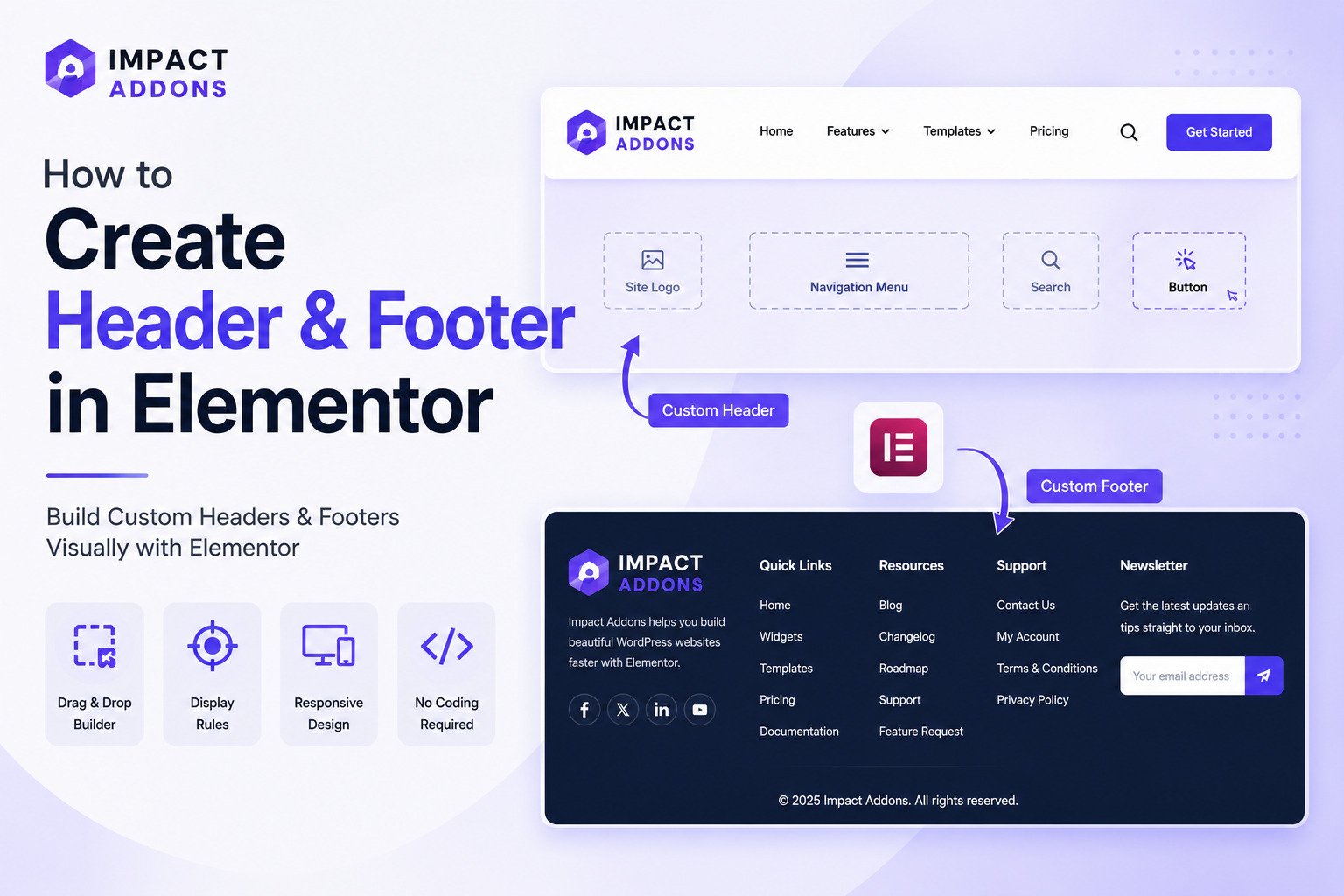
Your header and footer appear on nearly every page of your website, which makes them two of the most important sections for branding, navigation, and user experience. If you’re looking to build custom headers and footers in Elementor, this guide gives you a quick overview of the process — plus links to our detailed, step-by-step tutorials for each one.
Why Custom Headers and Footers in Elementor Matter
Most WordPress themes come with a fixed header and footer that offer limited design flexibility. If you want full control over your logo placement, navigation menu, call-to-action buttons, footer links, and newsletter form, you need a dedicated header and footer builder for Elementor rather than relying on your theme’s defaults.
A custom header helps you:
- Strengthen brand identity across every page
- Improve navigation with a clear, well-organized menu
- Highlight important actions with CTA buttons
A custom footer helps you:
- Give visitors quick access to key pages
- Display contact info, social links, and copyright details
- Capture email sign-ups directly from the page
How Impact Template Builder Makes This Easy
Impact Template Builder is our Elementor template builder designed specifically for creating headers, footers, and other reusable site templates — including WooCommerce cart, checkout, my account, and 404 pages. It works entirely inside the Elementor editor, so there’s no coding involved.
The basic workflow is the same for both header and footer templates:
- Go to Impact Pro Templates → Add New Impact Pro Template
- Set the Template Type to Header or Footer
- Design your layout visually inside Elementor
- Set your Display Location rules (entire site, specific pages, or exclusions)
- Publish and preview
This same process also applies if you’re building a WooCommerce header and footer Elementor setup — you can create page-specific versions and exclude them from checkout, cart, or other pages where a simplified layout works better.
Step-by-Step Guides
Since building a header and building a footer involve different design elements, we’ve broken this process into two detailed, dedicated tutorials so you can follow along more easily:
- How to Create a Header in Elementor — covers logo placement, navigation menus, CTA buttons, and display rules
- How to Create Footer in Elementor — covers link columns, social icons, newsletter forms, and the footer bottom bar
Following both guides gives you a complete, consistent Elementor header footer template across your entire site.
Best Practices
- Keep your header and footer visually consistent — same fonts, colors, and spacing
- Don’t overcrowd either section; a clean, focused layout performs better
- Always preview on mobile before publishing
- Use Display Location rules to simplify headers/footers on checkout or landing pages
Frequently Asked Questions
Do I need to build the header and footer at the same time? No. You can build and publish them separately, in any order, using the same Impact Template Builder workflow.
Can I use different headers and footers for WooCommerce pages? Yes. You can create separate templates and use Display Location rules to control exactly where each one appears, including WooCommerce-specific pages.
Do I need Elementor Pro for this? No. Impact Template Builder works with both free and Pro versions of Elementor.
Useful Links
- Impact Template Builder — the plugin used in this guide
- How to Install Impact Template Builder — setup instructions
- Pricing Plans — compare free vs. pro features
- Full Documentation — detailed guides for every template type
- How to Create a Header in Elementor — pair your footer with a matching header
- Contact Us — get help from our support team
- Submit a Feature Request — tell us what you’d like to see next
- Elementor Official Help Center — general Elementor documentation
Final Thoughts
Building custom headers and footers in Elementor gives you full control over two of the most visible parts of your website. For the complete walkthrough with screenshots, check out our dedicated guides: How to Create a Header in Elementor and How to Create Footer in Elementor.
Ready to get started? Explore Impact Template Builder or check the full documentation. Have questions? Contact us or submit a feature request.