

Create Multi Step Form in Elementor using Impact Forms, the same Elementor Form Builder you’d use to build a contact form — with one key addition: Step fields that break your form into clean, digestible sections. Multi-step forms reduce form abandonment, feel less overwhelming to visitors, and work great for applications, quotes, surveys, and detailed sign-ups. In this guide, you’ll learn how to build a fully functional Elementor Multi Step Form from scratch.
Step 1: Add the Impact Pro Multi Step Form Widget
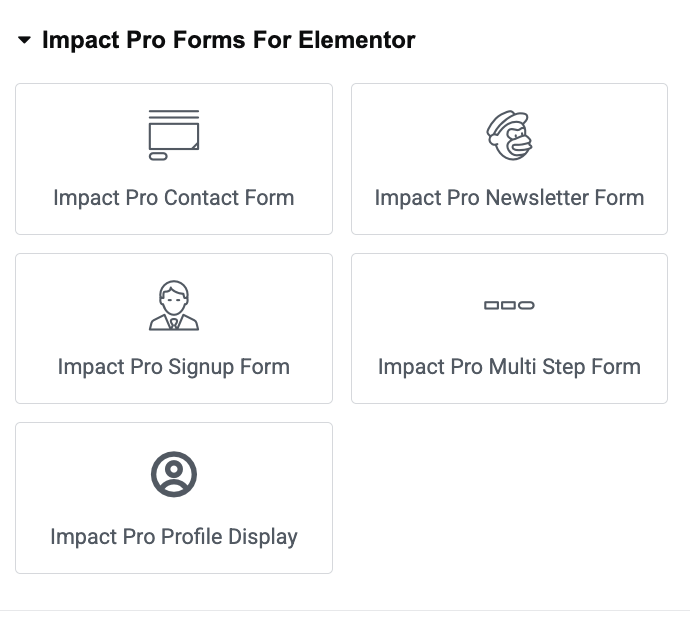
Start by editing your page with Elementor and drag the Impact Pro Multi Step Form widget onto your page from the Impact Pro Forms For Elementor panel, alongside Impact Pro Contact Form, Newsletter Form, Signup Form, and Profile Display.
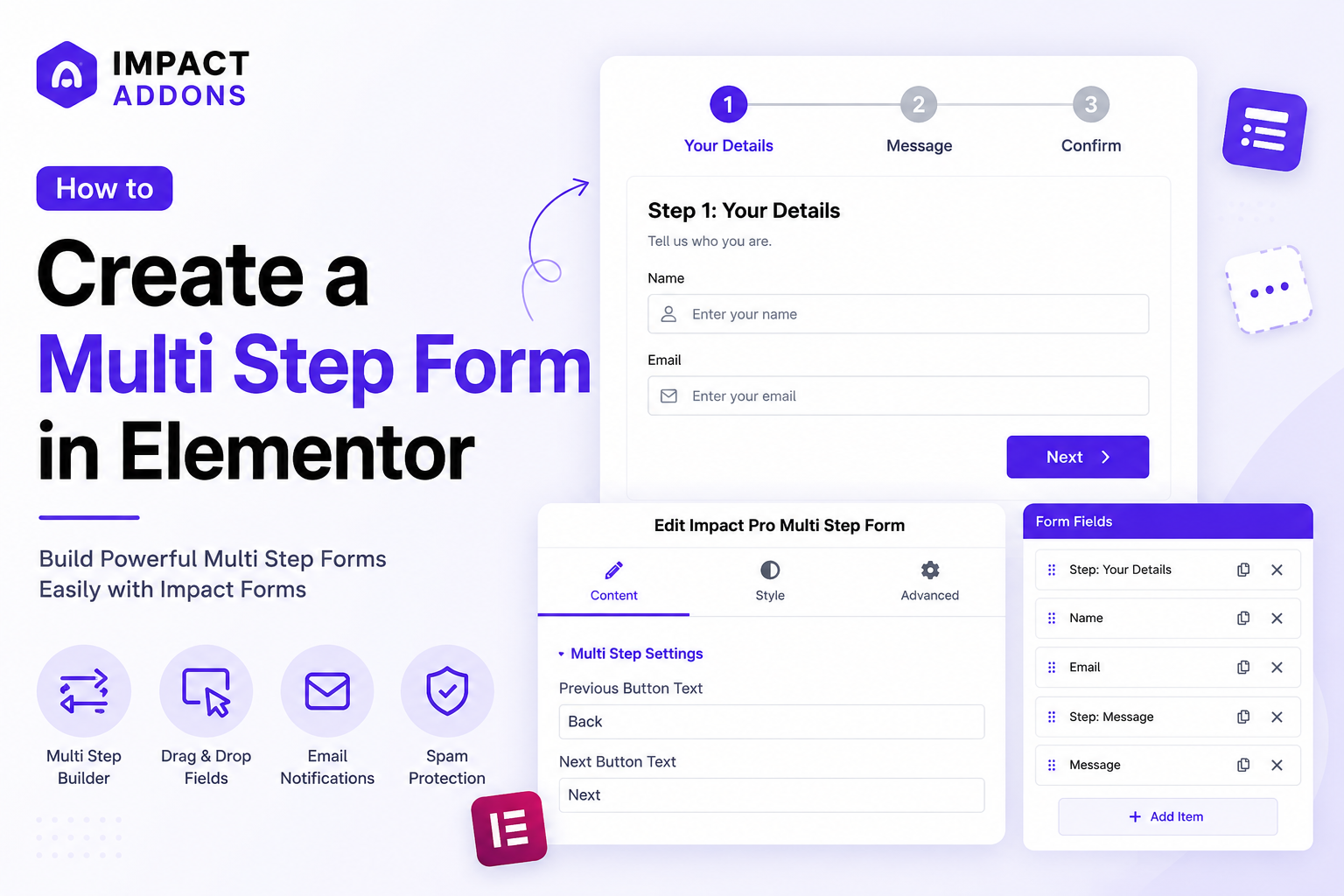
From the Content tab, you’ll see the same familiar form-building interface used across Impact Forms:
- Form Name
- Fields (drag to reorder, duplicate, or remove)
- Add Item button
- Submit Button Text
- Success Message
- Validation Message Position
The difference with a Multi Page Form Elementor setup is how you organize your fields — using Step fields to divide everything into separate screens.
Step 2: Break Your Form into Steps
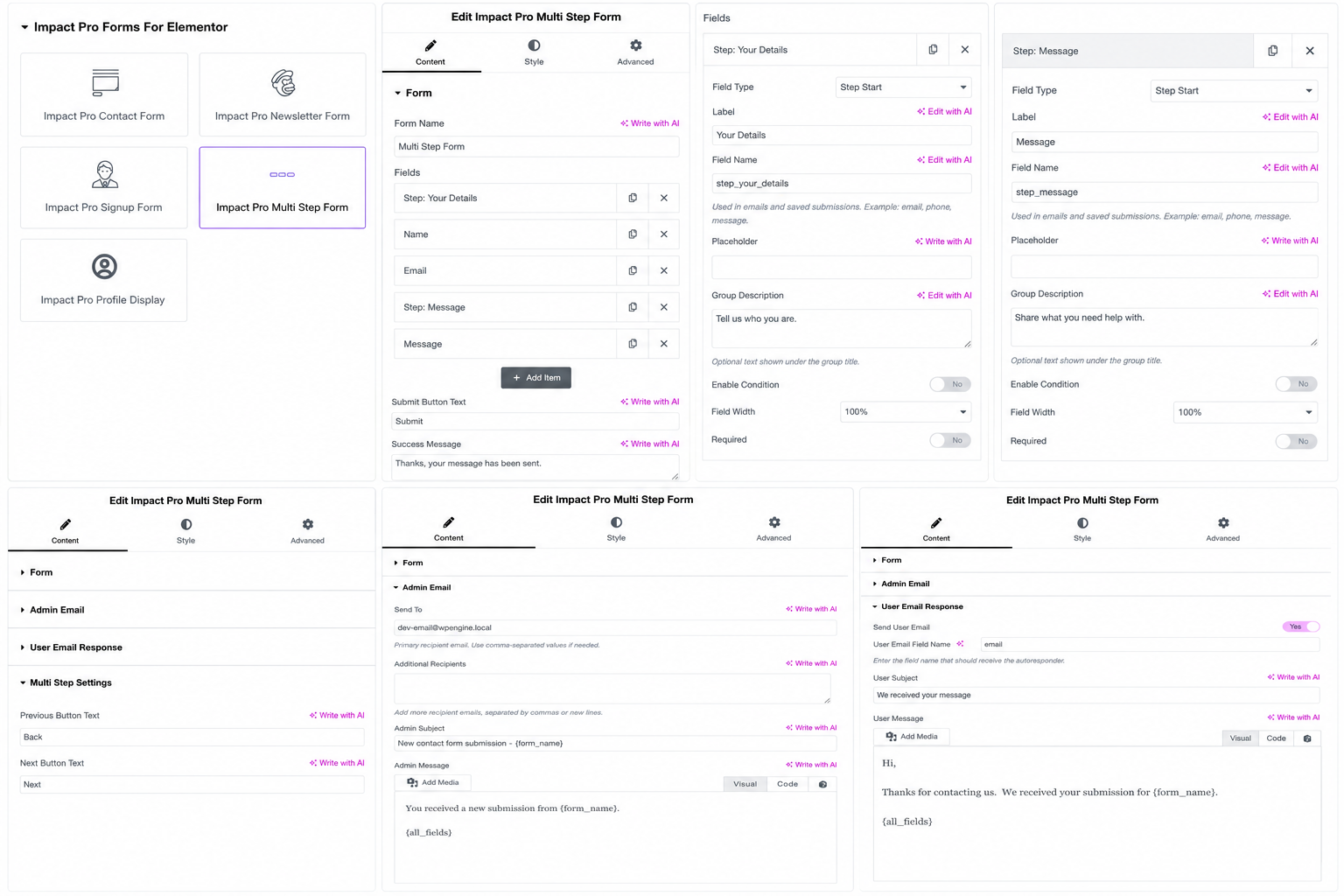
To create Multi Step Form in Elementor, click Add Item and set the Field Type to Step Start. This inserts a step marker into your field list — everything added after it belongs to that step, until the next Step Start field appears.
Each Step field has its own settings:
| Setting | Purpose |
|---|---|
| Label | The step’s visible title (e.g., “Your Details”) |
| Field Name | Used internally in emails and saved submissions (e.g., step_your_details) |
| Placeholder | Optional placeholder text |
| Group Description | Short helper text shown under the step title (e.g., “Tell us who you are.”) |
| Enable Condition | Show the step conditionally based on another field’s value |
| Field Width | Layout width of the step group |
| Required | Whether fields inside the step must be completed |
For example, a simple two-step form might look like:
- Step 1: Your Details — Name, Email
- Step 2: Message — Message
Add as many steps as your form needs — a common pattern is 3-5 steps for applications or multi-part quote forms, keeping each step focused on one topic.
Step 3: Configure Previous and Next Buttons
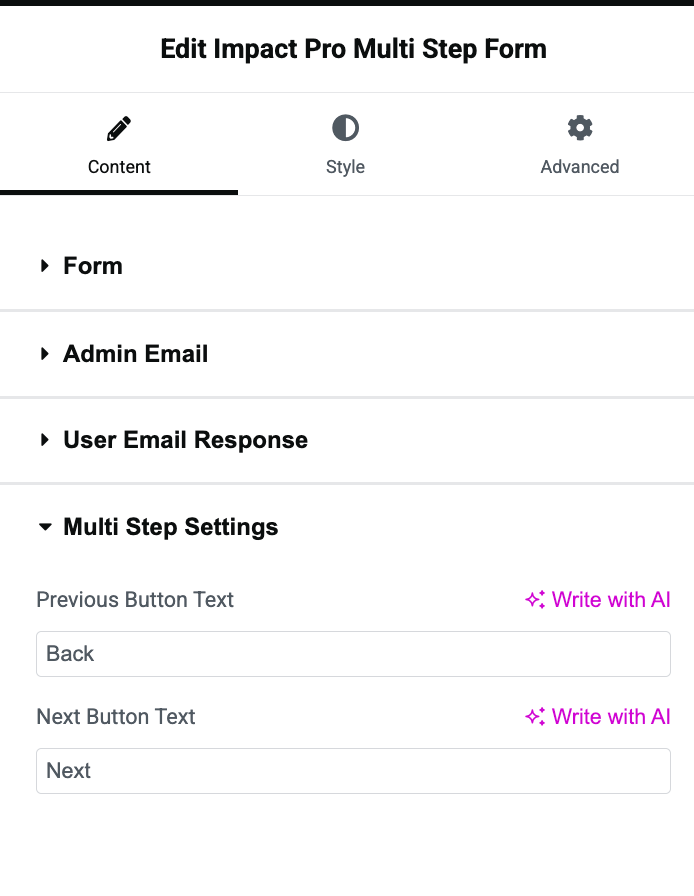
Under Multi Step Settings, customize the navigation text your visitors will see:
- Previous Button Text — defaults to “Back”
- Next Button Text — defaults to “Next”
You can rewrite these to match your brand voice — for example, “Continue” instead of “Next,” or “Go Back” instead of “Back.” This is a small detail, but it’s part of what makes a Multi Step Form Builder Elementor setup feel polished rather than generic.
Step 4: Configure Email Notifications
Just like a standard contact form, your multi-step form supports two notification systems:
Admin Email Notification — sent to your website administrator on every submission, with:
- Primary and additional recipients
- Custom subject line (e.g., “New contact form submission – {form_name}”)
- Dynamic tokens like
{form_name}and{all_fields}to auto-insert submission data
User Email Response — an automatic confirmation email sent back to the person who submitted the form, with:
- A toggle to enable/disable it
- The field name that holds the user’s email address
- A custom subject and message (e.g., “We received your message”)
Since multi-step forms are often longer and more detailed, a confirmation email reassures users that their full submission — across every step — was received successfully.
Step 5: Style and Publish
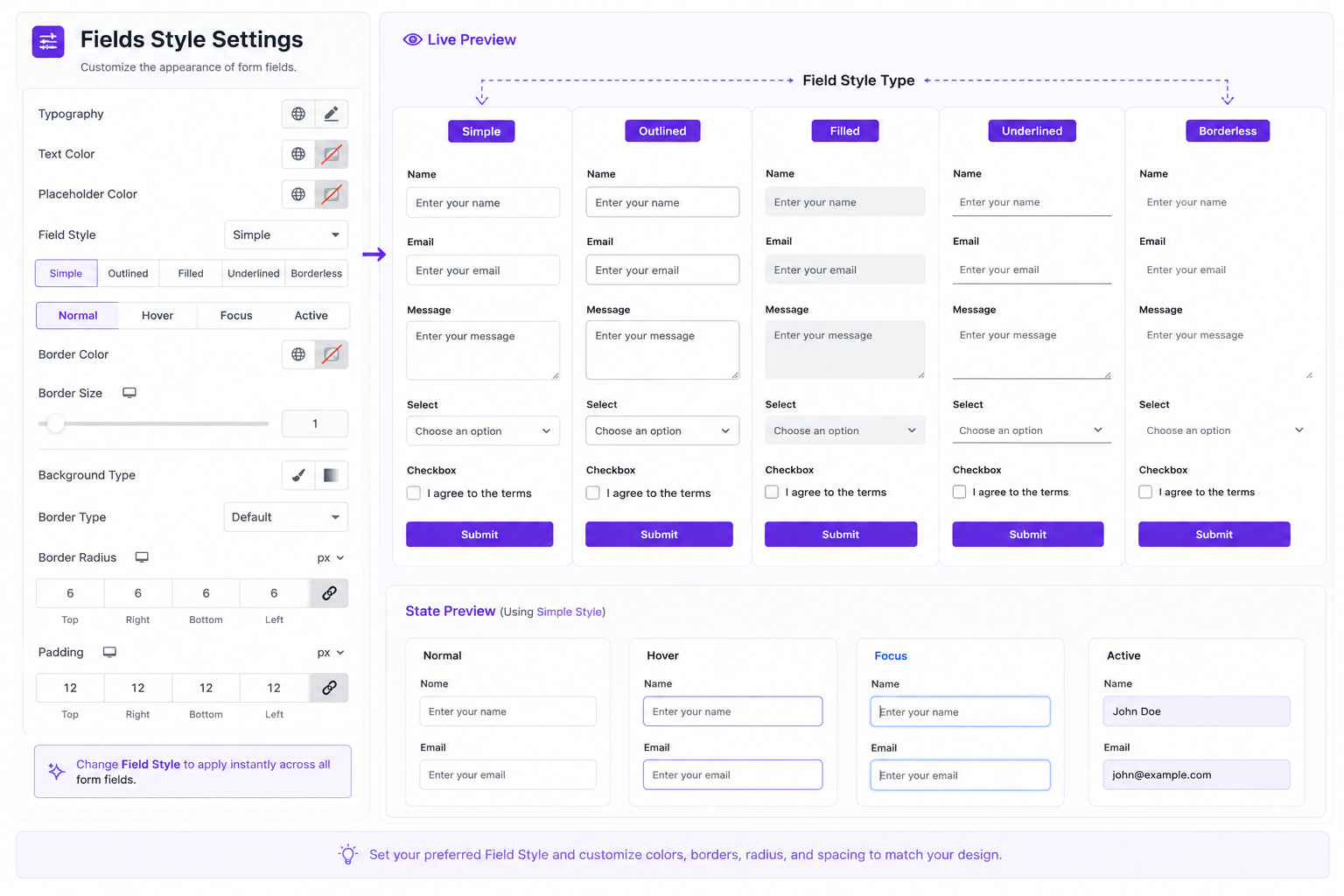
Styling a Multi Page Form Elementor template works exactly the same as styling a standard contact form. You get full control over:
- Five built-in field styles: Simple, Outlined, Filled, Underlined, Borderless
- Typography, text colors, placeholder colors, borders, backgrounds, and padding
- Hover, focus, and active states
- Field group styling (background, border, box shadow, title/description typography)
- The multi-step progress indicator — step gap, connector width, number circle, active colors, and connector line style
Once your design is ready:
- Review each step and field
- Test both admin and user email notifications
- Preview the step navigation on desktop and mobile
- Publish the page
Your Elementor Multi Step Form is now ready to guide visitors through a longer form without overwhelming them.
Frequently Asked Questions
Can I create a multi step form without coding?
Yes. You can create Multi Step Form in Elementor entirely through drag-and-drop controls — no HTML, CSS, or PHP required.
How many steps can a form have?
There’s no hard limit — add as many Step Start fields as your form needs. Most multi-step forms work best with 3-5 steps.
Can I use Conditional Logic inside a multi step form?
Yes. Both regular fields and Step fields support Conditional Logic, so you can show or hide fields — or entire steps — based on previous answers.
Does the multi step form support email notifications?
Yes. You get the same Admin Email and User Email Response system used in Impact Forms’ contact forms, including dynamic tokens for form data.
Can I customize the Next and Back button text?
Yes. Both are editable under Multi Step Settings, so you can match your form’s tone and branding.
Continue Learning with Impact Forms
Your Elementor Multi Step Form is ready to collect detailed submissions in a way that feels easy for visitors to complete. With Impact Forms, you can continue building registration forms, newsletter forms, login forms, and popup forms using the same intuitive Elementor Form Builder.
Install Impact Forms
👉 https://impactaddons.com/install-impact-forms-for-elementor/
Impact Forms for Elementor
Discover all the features available in Impact Forms, including Contact Forms, Newsletter Forms, Signup Forms, Multi-Step Forms, Conditional Logic, Form Analytics, Submissions, and advanced styling options.
👉 https://impactaddons.com/impact-forms-for-elementor/
Documentation
Browse the complete documentation to learn how every widget, setting, and feature works with step-by-step tutorials.
👉 https://impactaddons.com/documentation/
Pricing & Elementor Bundle
Upgrade to Impact Forms Pro or choose the complete Elementor Bundle to access Impact Widgets, Impact Grid Addon, Impact Template Builder, and Impact Forms from a single license.
👉 https://impactaddons.com/pricing/
Need Help?
If you have questions or need assistance while creating your multi step form, we’re here to help.
- 📖 Documentation: https://impactaddons.com/documentation/
- 💬 Contact Support: https://impactaddons.com/contact/
- 💡 Feature Request: https://impactaddons.com/feature-request/