

Create Registration Form in Elementor (5 Easy Steps)
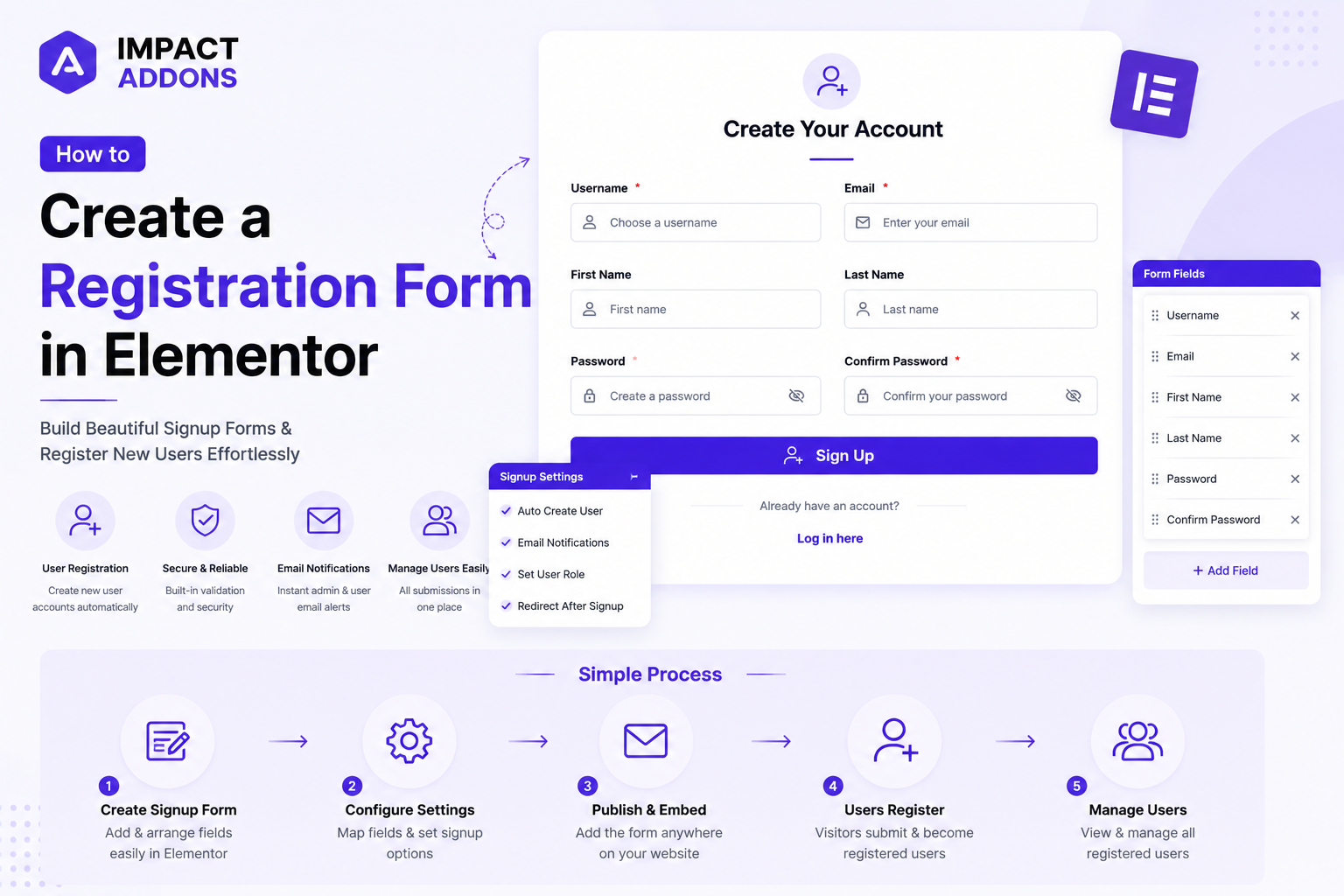
Create Registration Form in Elementor using Impact Forms — the same drag-and-drop Elementor Form Builder used for contact and multi-step forms, now applied to a form that actually creates WordPress user accounts. A well-designed Elementor Registration Form lets visitors sign up for memberships, communities, or gated content without ever leaving your page. In this guide, you’ll build one from scratch using the Impact Pro Signup Form widget.
Step 1: Add the Impact Pro Signup Form Widget

Edit your page with Elementor and drag the Impact Pro Signup Form widget onto the page from the Impact Pro Forms For Elementor panel. Unlike a standard contact form, a Signup Form Elementor widget is connected directly to WordPress’s user system — every submission creates a real WordPress account, not just an email notification.
Start under the Form section by setting your Form Name (e.g., “User Signup”) and adding your fields, just like any other Impact Forms widget:
- Username
- First Name
- Last Name
- Password
- Confirm Password
Step 2: Configure Each Field
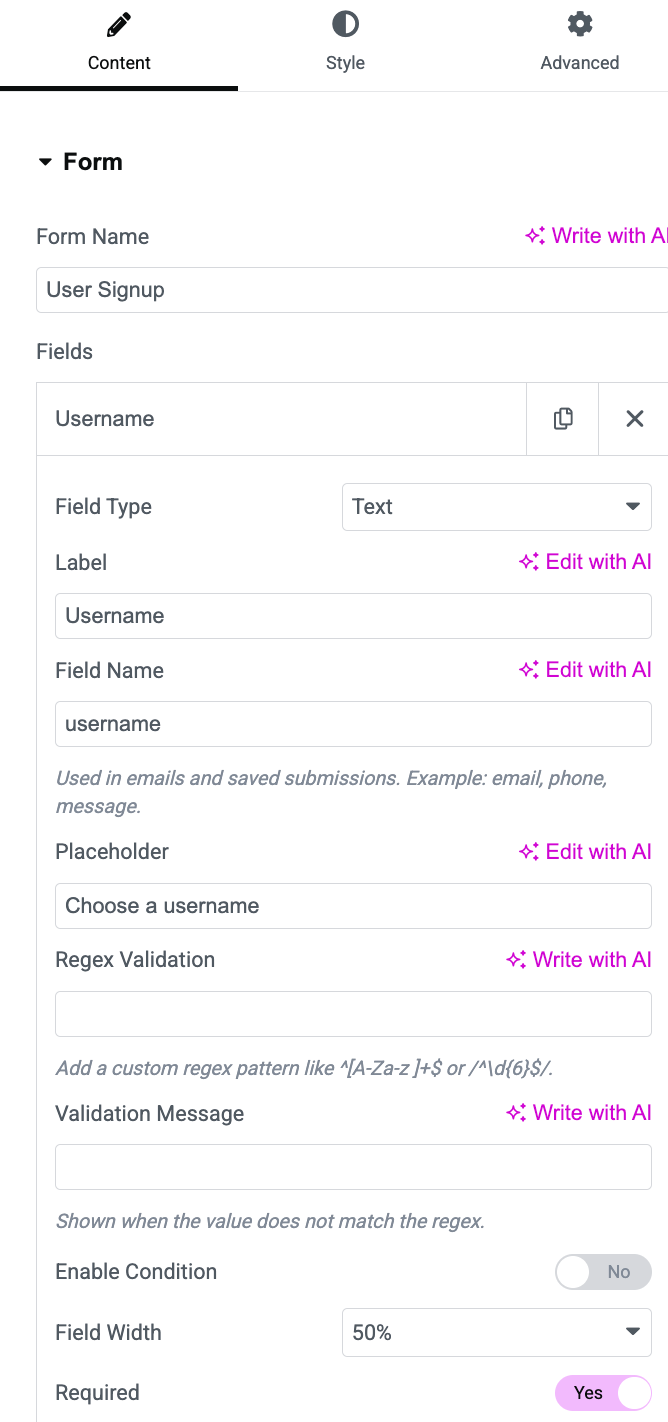
Click into any field to configure it. For a User Registration Form Elementor setup, the key settings to check are:
| Setting | Purpose |
|---|---|
| Field Type | Text, Password, Email, etc. |
| Label | Visible field title (e.g., “Username”) |
| Field Name | Internal name used to map the field to WordPress (e.g., username) |
| Placeholder | Helper text shown inside the empty field |
| Regex Validation | Optional pattern to enforce formatting rules |
| Field Width | Layout width — 50% works well for two-column layouts like Username/Email |
| Required | Whether the field must be filled before submitting |
Set your Password field type to Password so input is masked, and repeat the same for Confirm Password.
Step 3: Connect Fields to WordPress User Data
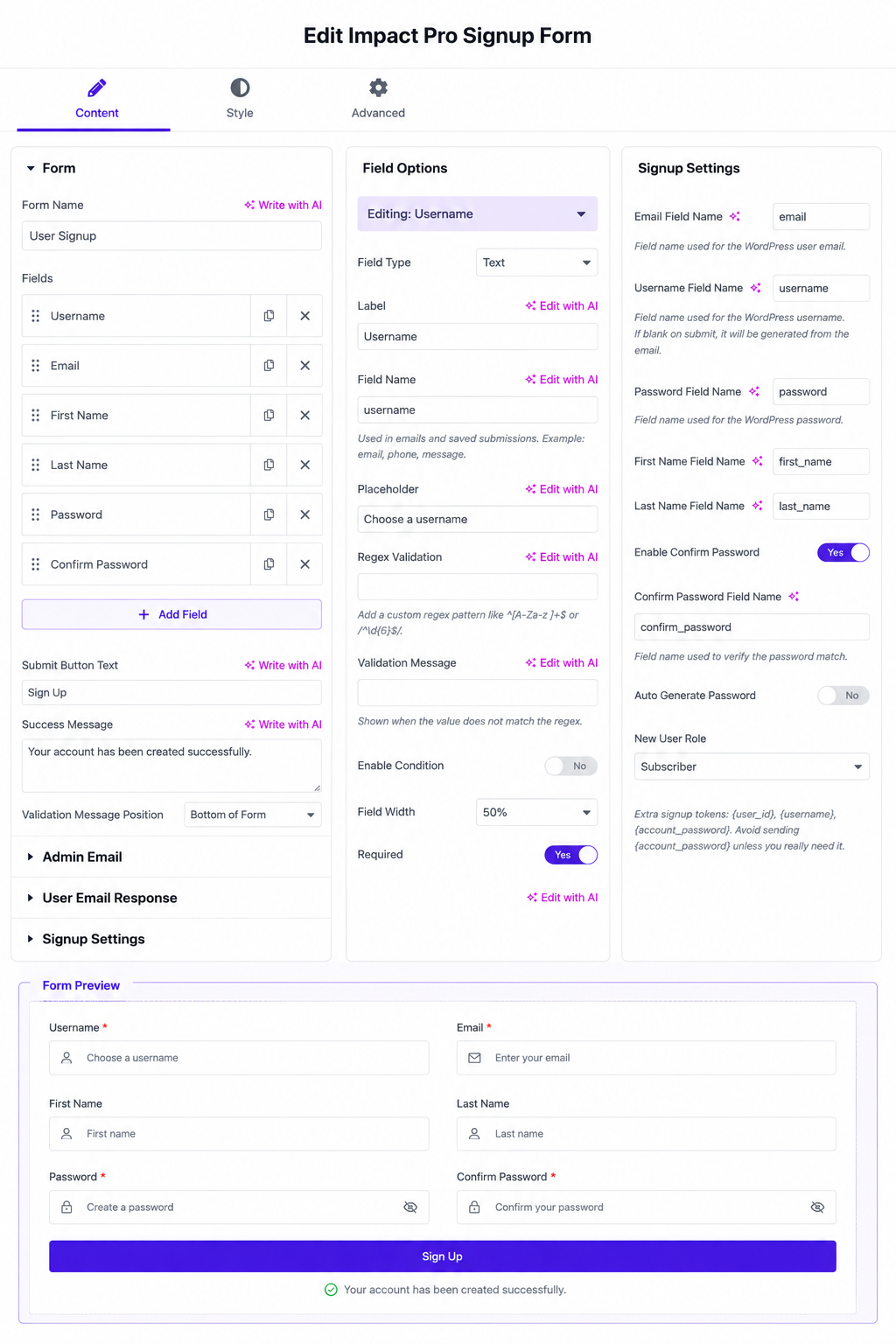
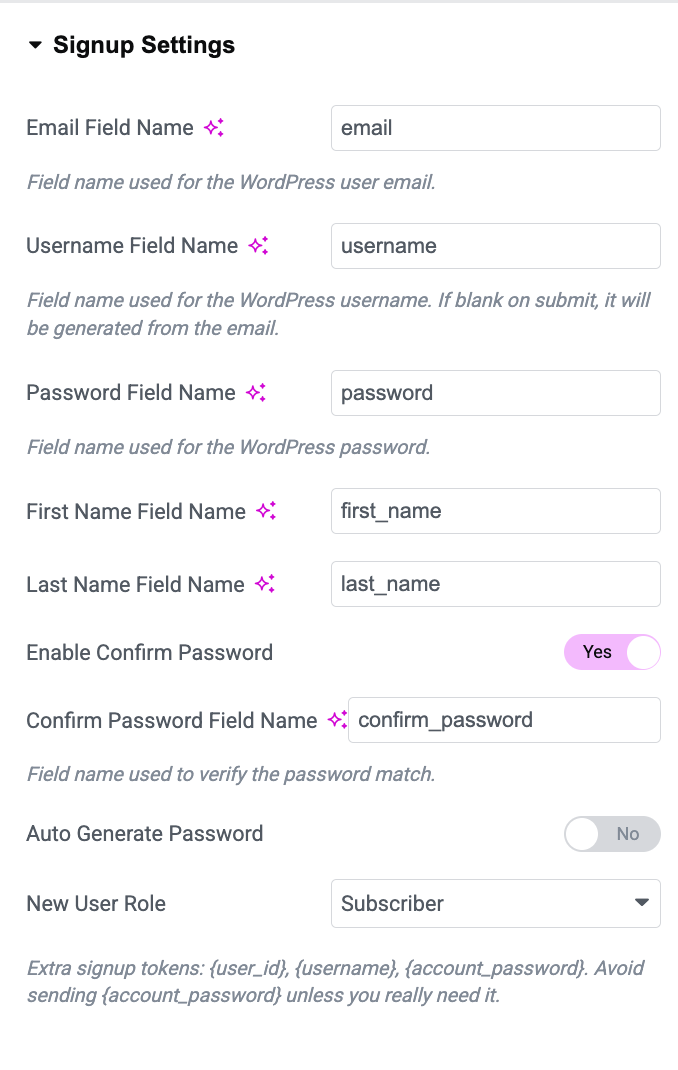
This is the part that makes a Signup Form Elementor widget different from a regular contact form. Under Signup Settings, map each of your form fields to the corresponding WordPress user field:
- Email Field Name — maps to the WordPress user email (e.g.,
email) - Username Field Name — maps to the WordPress username (e.g.,
username); if left blank, WordPress will auto-generate one from the email - Password Field Name — maps to the account password (e.g.,
password) - First Name Field Name / Last Name Field Name — optional profile fields
- Enable Confirm Password — toggle on to require users to re-enter their password
- Confirm Password Field Name — the field used to verify the password match
- Auto Generate Password — toggle on if you’d rather WordPress generate a secure password automatically instead of asking the user to create one
- New User Role — choose what role new users are assigned (Subscriber is the default and safest option for public registration)
A helpful note directly in the settings reminds you that extra signup tokens like {user_id}, {username}, and {account_password} are available for use in confirmation emails — though it’s best to avoid sending {account_password} unless absolutely necessary, for security reasons.
Step 4: Configure Email Notifications
Just like the contact and multi-step forms, your registration form supports Admin Email and User Email Response notifications. Use these to:
- Alert your team whenever a new user registers
- Send new users a welcome email confirming their account was created
- Include dynamic tokens like
{form_name}and{all_fields}to personalize the message
This step works exactly the same as in Impact Forms’ other widgets, so if you’ve already built a contact or multi-step form, the process will feel familiar.
Step 5: Style and Publish
Styling an Elementor Registration Form uses the same style controls available across all Impact Forms widgets — field styles (Simple, Outlined, Filled, Underlined, Borderless), typography, colors, borders, spacing, and button states. Since you’ve already set this up if you followed our contact form or multi-step form guides, there’s nothing new to configure here — just apply the same design for a consistent look across every form on your site.
Before publishing:
- Test the signup flow yourself to confirm a WordPress user is actually created
- Check that the assigned New User Role is correct for your use case
- Confirm password masking and Confirm Password matching work as expected
- Preview the form on mobile
Once everything checks out, publish the page. Your Create Registration Form in Elementor setup is now live and ready to onboard new users.
Frequently Asked Questions
Does this form actually create WordPress user accounts?
Yes. Unlike a standard contact form, the Impact Pro Signup Form widget is connected to WordPress’s user system, so every valid submission creates a real user account with the role you specify.
Can I control what role new users get?
Yes. Under Signup Settings, the New User Role dropdown lets you assign a role such as Subscriber to every new signup — a key setting to check when setting up any User Registration Form Elementor site relies on for public sign-ups.
Can I auto-generate passwords instead of asking users to create one?
Yes. Toggle Auto Generate Password to have WordPress generate a secure password automatically instead of requiring manual input.
Is a Confirm Password field required?
No, but it’s recommended. Toggle Enable Confirm Password to add a second password field that verifies the user typed their password correctly.
Can I style the registration form to match my other forms?
Yes. The Elementor Signup Form Builder uses the same style panel as Impact Forms’ contact and multi-step form widgets, so your entire site can share a consistent form design.
Continue Learning with Impact Forms
Your Elementor Registration Form is ready to turn visitors into registered users. With Impact Forms, you can continue building login forms, popup forms, and newsletter forms using the same Elementor Form Builder.
Install Impact Forms
👉 https://impactaddons.com/install-impact-forms-for-elementor/
Impact Forms for Elementor
Discover all the features available in Impact Forms, including Contact Forms, Newsletter Forms, Signup Forms, Multi-Step Forms, Conditional Logic, Form Analytics, Submissions, and advanced styling options.
👉 https://impactaddons.com/impact-forms-for-elementor/
Documentation
Browse the complete documentation to learn how every widget, setting, and feature works with step-by-step tutorials.
👉 https://impactaddons.com/documentation/
Pricing & Elementor Bundle
Upgrade to Impact Forms Pro or choose the complete Elementor Bundle to access Impact Widgets, Impact Grid Addon, Impact Template Builder, and Impact Forms from a single license.
👉 https://impactaddons.com/pricing/
Need Help?
If you have questions or need assistance while creating your registration form, we’re here to help.
- 📖 Documentation: https://impactaddons.com/documentation/
- 💬 Contact Support: https://impactaddons.com/contact/
- 💡 Feature Request: https://impactaddons.com/feature-request/